
A plan you have to remember to open isn't much of a plan. Payday Plan puts the dates where you already look, and taps you on the shoulder only when something actually needs a person.
Your bills on your calendar
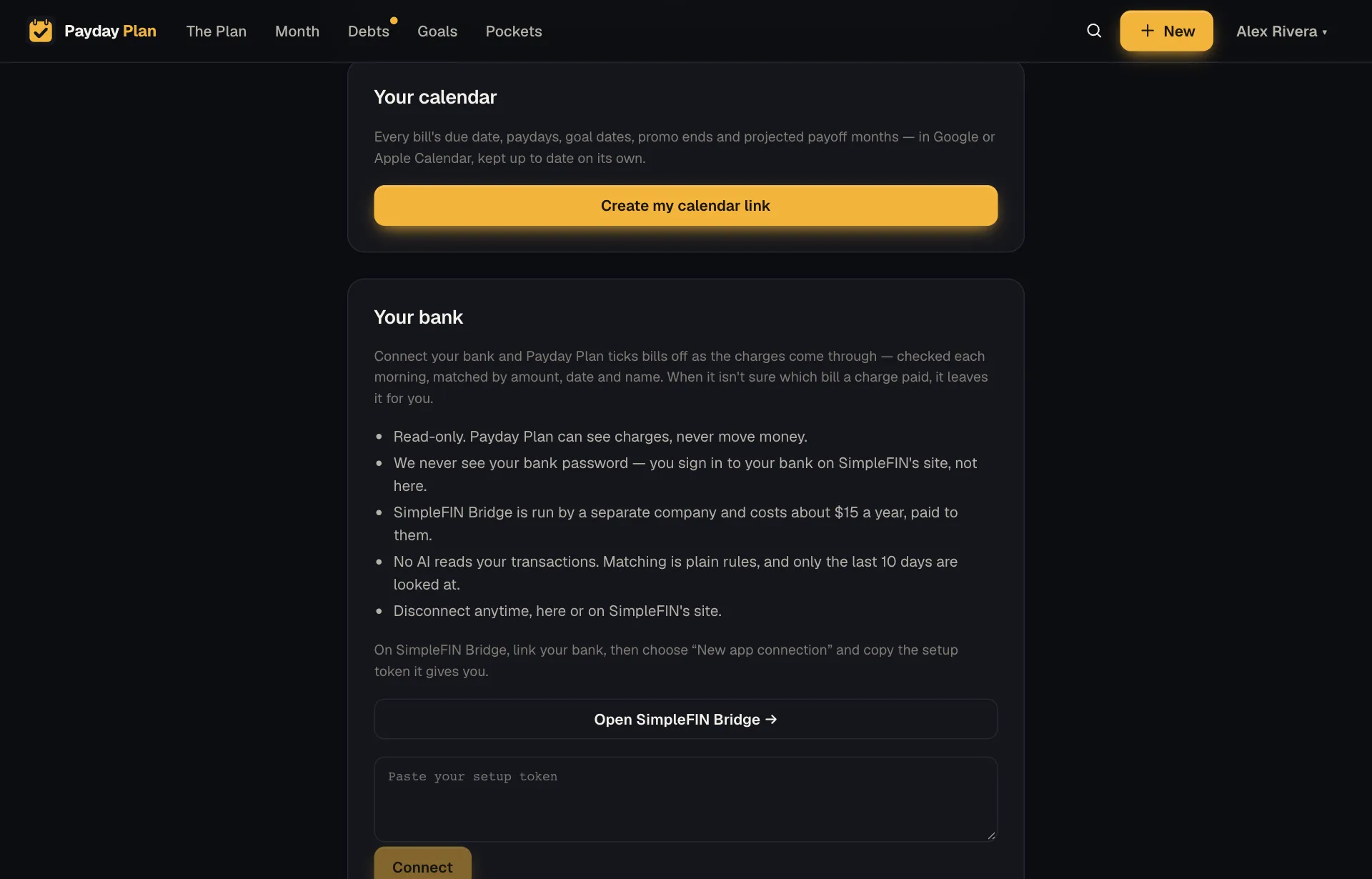
In Settings, under Your calendar, press Create my calendar link to get a private calendar link. Add it to Apple Calendar (Add to Apple Calendar) or Google Calendar (paste the link under “From URL”) once, and it shows, for the next 12 months:
- Every bill's due date, with the amount and whether it's on autopay. For example, "Netflix · $18 · autopay."
- Paydays, worked out from each paycheck's schedule.
- Goal dates, like spring tuition or the car registration.
- Promo endings, the day a 0% rate reverts.
- Cancel-by dates for subscriptions you mean to drop.
- Projected payoffs, the month each debt is on track to clear.
It stays current. Change a bill's due day in Payday Plan and the event moves on your calendar instead of showing up twice. (How quickly it updates depends on how often your calendar app checks. Google and Apple each have their own idea of "soon.")
The link is read-only. Your calendar can see the dates, it can't change your plan. Turn it off, or Make a new link to replace it, any time.
A nudge the evening before
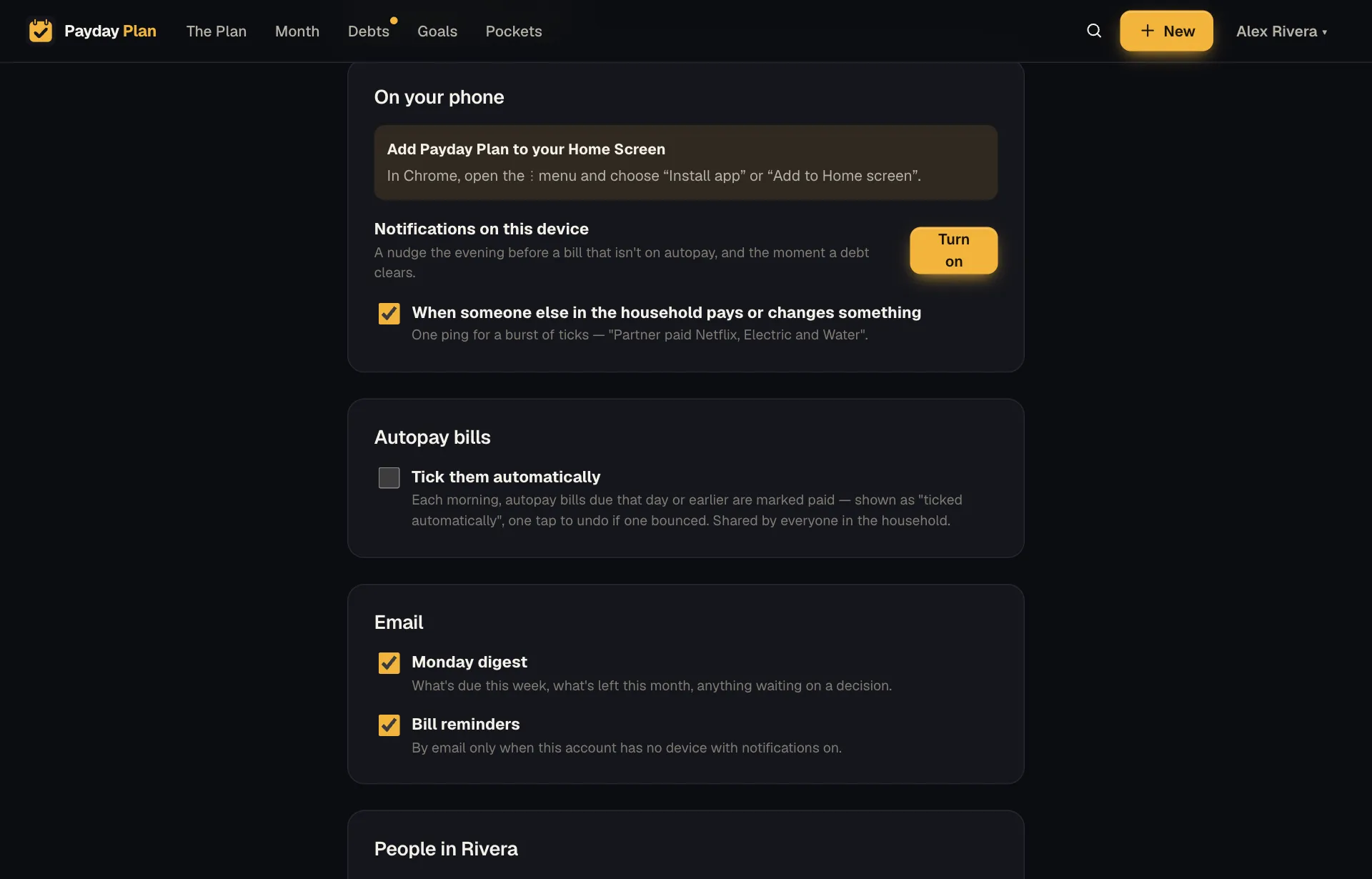
Install Payday Plan to your phone's Home Screen, then in Settings, under On your phone, press Turn on next to Notifications on this device. The evening before a bill that isn't on autopay is due, you'll get one notification:
Due tomorrow: Water and Dance tuition — not on autopay.
Autopay bills don't nag you. They're the ones taking care of themselves. If you'd like reminders but haven't set up a phone, leave Bill reminders ticked under Email in Settings and you'll get the same reminder by email instead.
You'll also hear about the day before a subscription's cancel-by date, and the moment a debt is paid off. Those are worth an interruption.
Try it: On an iPhone, open the app in Safari, tap Share, then Add to Home Screen. Then, in Settings, press Turn on next to Notifications on this device.
Autopay bills tick themselves
If most of your bills are on autopay, ticking them is busywork. In Settings, under Autopay bills, tick Tick them automatically, and each morning autopay bills due that day or earlier tick themselves.
They're marked "ticked automatically," so if a payment bounces, it's easy to spot and un-tick. It's off until you turn it on.
Not ready for that? When autopay bills have come due without a tick, the Month page shows a bar with Mark all paid ✓, which does the same in one tap, whenever you choose.
The Monday digest
Monday morning, an email with the week in one glance:
- What's due this week.
- What's left to pay this month.
- Anything waiting on a decision, like a freed debt payment or an emailed bill.
The subject line gets to the point, something like "This week: $1,240.00 left to pay this month." (Example amount.) If that's all you read, you've still read the important part.
Each adult in the household chooses whether to get it, with the Monday digest box under Email in Settings.
Notifications that respect your evening
The aim is fewer, better notifications:
- One reminder per evening, listing every manual bill due tomorrow.
- Partner pings bundled, so a burst of ticks becomes one notification.
- Nothing for autopay bills, unless something needs you.
- Every kind is optional, set by each person for themselves.